Demo 1: VMware to OpenShift Virtualization (cold migration)¶
Version 1.4.2 · draft · 2026-10-18 · class/demos/01-vmware-to-ove-cold.md
What you will learn¶
You move your own Windows Server + PostgreSQL VM off VMware vSphere and onto OpenShift Virtualization with the Migration Toolkit for Virtualization (MTV). A cold migration copies the disks while the VM is off: simple and consistent, at the cost of an outage for the whole copy. Before and after the move you write a row into your VM's database and read every row back, so you can see your data survive the move.
Before you start: do Lab 0. You are signed in to the site A console, and your
database rows from Lab 0 are there. Every command below runs in the console's Web Terminal (>_).
⚠ The commands are an example. Change these values to yours before you run them:
In the example Is the example's Replace with yours student-01-0024-012class ID and project ( student-01on booking0024-012)your class ID win-pg-s01your VM ( s+ your student number)your VM 10.101.23.101your VM's address, the SQL server (it keeps it on OpenShift) your VM's address, from Lab 0.1 vcenter01/ VLAN23your booking's vCenter ( N= 1) and VLAN (22 + N)from your instructor's N
🎬 Demo 1: cold migration: a walk-through of the whole demo in the console. Watch it, then do the same with the steps below.
1.0 Inject: the demo has started¶
Sign in to your VM's database first, if you haven't since your class terminal started (Lab 0 step 1). It asks for your class password. Without it, every command below answers First sign in to your VM's database … dblogin:
oc exec -it -n student-01-0024-012 deploy/sql-client -- dblogin
Then write your first row, and read your rows back:
oc exec -n student-01-0024-012 deploy/sql-client -- sql -h 10.101.23.101 -c "SELECT * FROM ovedr_mark('student-01-0024-012', 'demo-started', 'Demo 1: cold migration');"
oc exec -n student-01-0024-012 deploy/sql-client -- sql -h 10.101.23.101 -c "SELECT id, ts, stage, payload FROM marks ORDER BY id;"   # read back: your rows so far, oldest first
✅ The first command prints the row it wrote, stage demo-started. The read-back lists every row you have written so
far, oldest first: start-class (if you injected it in Lab 0), then demo-started. Each step of the class adds one, so the read-back is
your progress through the class. (If it says First sign in … dblogin, run Lab 0's step 1 again.)
💡
Error from server (NotFound): namespaces "student-01-0024-012" not foundmeans you ran the example as it is. Use your class ID (your sign-in name before the@, also shown byoc whoami) in every command. Its last part is your booking, which changes from class to class (for examplestudent-01-0024-014).
1.1 Check your migration plan, and the link to vCenter¶
The lab staged everything for you: a provider that links OpenShift to your vCenter, and your own migration plan, ready but not started.
Console (site A): Migration for Virtualization → Providers → ovedr-vcenter01.
✅ Status Ready, and Connected: OpenShift can log in to vCenter and read its inventory.
Console: Migration for Virtualization → Migration plans → d1-win-pg-s01 (your plan is d1-<your VM>).
✅ Status Ready. Source provider ovedr-vcenter01, your VM, target project your class ID, type Cold.
The network map puts your VM on your VLAN's bridge, so it keeps its address; the storage map puts its disks on ODF.
The same from the Web Terminal:
oc -n openshift-mtv get provider ovedr-vcenter01                     # READY True · CONNECTED True
oc -n openshift-mtv get plan d1-win-pg-s01                           # READY True
My plan says "Cannot start" (critical concerns)
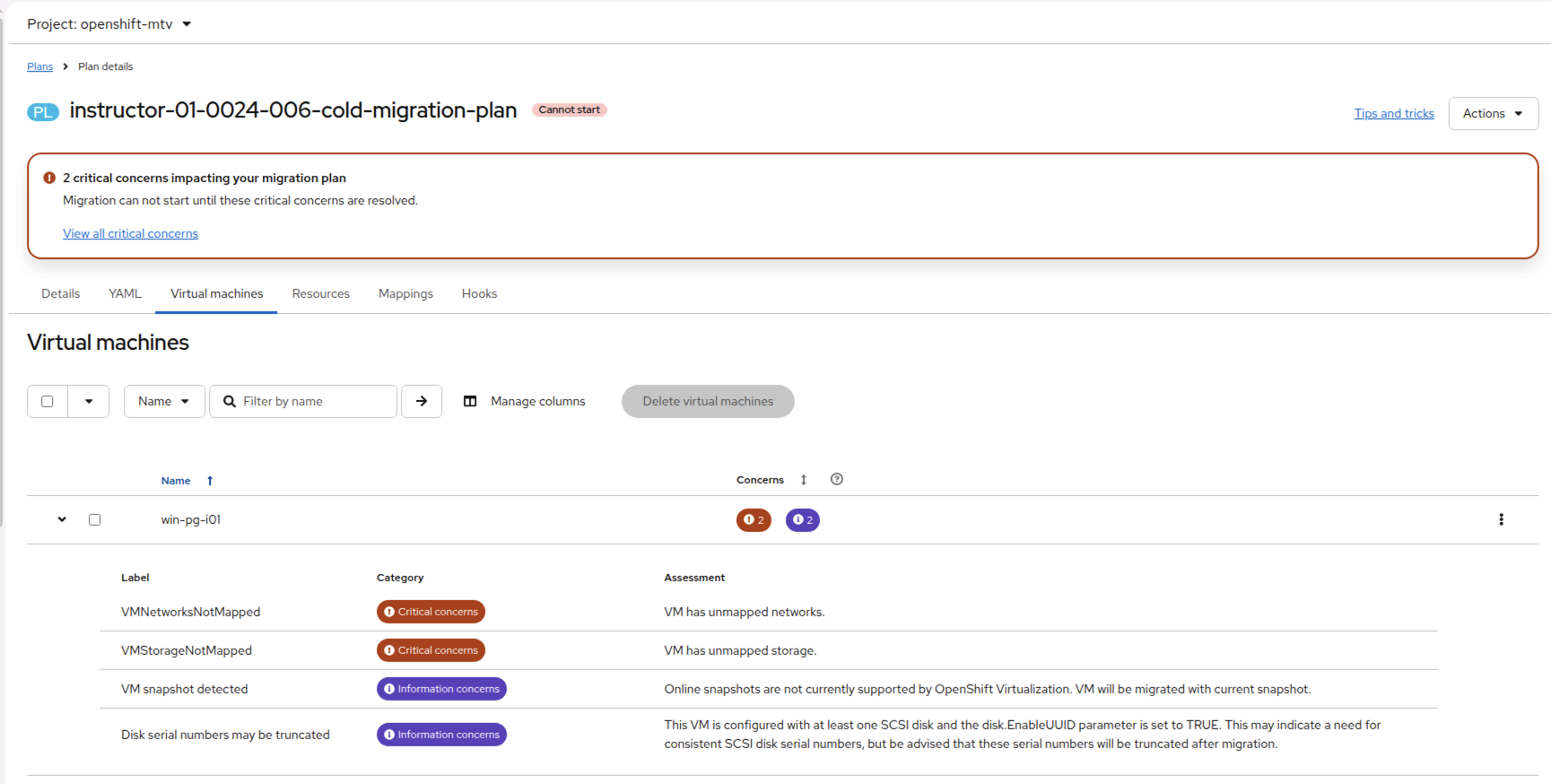 Two critical concerns block the start: the plan's maps don't cover your VM's network or its datastore. The two
information concerns are fine for a cold migration.
Two critical concerns block the start: the plan's maps don't cover your VM's network or its datastore. The two
information concerns are fine for a cold migration.
| Concern | What it means | Fix |
|---|---|---|
| VMNetworksNotMapped (critical) | Your VM's NIC is on a vSphere network (vm-network) that the plan's network map has no row for |
Map vm-network |
| VMStorageNotMapped (critical) | Your VM's disks are on a datastore (coresan01_data00) that the plan's storage map has no row for |
Map coresan01_data00 |
| VM snapshot detected (info) | Your VM has a snapshot. MTV migrates the VM's current state | Nothing to do |
| Disk serial numbers may be truncated (info) | SCSI serials are shortened on OpenShift | Nothing to do |
Fix in the console: open the plan → Mappings tab → Edit mappings:
- Network: source
vm-network→ target your VLAN's bridgedefault/vmnet23(keeps your address). - Storage: source
coresan01_data00→ targetocs-storagecluster-ceph-rbd-virtualization. - Save. The concerns clear within a minute, and the status changes from Cannot start to Ready.
1.2 Inject, then shut your VM down¶
Your database lives inside the VM, so write the "start" row before you shut it down:
oc exec -n student-01-0024-012 deploy/sql-client -- sql -h 10.101.23.101 -c "SELECT * FROM ovedr_mark('student-01-0024-012', 'start-cold-migration', 'on vSphere');"
oc exec -n student-01-0024-012 deploy/sql-client -- sql -h 10.101.23.101 -c "SELECT id, ts, stage, payload FROM marks ORDER BY id;"   # read back: your rows so far, oldest first
vCenter: VMs and Templates → datacenter01 → vms → students → student-01-0024-012 → win-pg-s01 →
Actions → Power → Shut Down Guest OS. A clean guest shutdown flushes PostgreSQL to disk first.
✅ The read-back (before the shutdown) ends with start-cold-migration, the last row written on vSphere. The VM shows
Powered Off in vCenter.
1.3 Start the migration¶
Console (site A): Migration for Virtualization → Migration plans → d1-win-pg-s01 → Start → confirm.
Watch it on the plan's page: expand your VM to see each step with a progress bar.
- Initialize (seconds)
- DiskAllocation: three empty disks (
C:,D:data,L:WAL) are created on ODF in your project (about a minute) - ImageConversion: a conversion pod in your project runs
virt-v2v, which opens your VM's disks through vCenter, installs the virtio drivers and the QEMU guest agent, and removes VMware Tools - DiskTransferV2v:
virt-v2vwrites the converted disks into the three new ones (MB done of the total) - VirtualMachineCreation
oc -n openshift-mtv get plan d1-win-pg-s01 -w                        # Executing → Succeeded (Ctrl-C to stop watching)
# each step, its state and progress
oc -n openshift-mtv get plan d1-win-pg-s01 -o json \
  | jq -r '.status.migration.vms[0].pipeline[] | "\(.name)  \(.phase // "-")  \(.progress.completed // 0)/\(.progress.total // 0) \(.annotations.unit // "")"'
⏱️ The copy takes about 1 h 30. Without VDDK, virt-v2v reads your VM's disks through vCenter, and that read
is the slow part (measured 1 h 06 – 1 h 16 on the lab's SSDs; allow 1 h 30). ImageConversion takes most of it,
with no MB counter moving: virt-v2v reads the guest, inspects Windows and installs the virtio drivers.
DiskTransferV2v then copies the disks. The whole class migrating at once is no slower per VM.
A progress bar that sits still for a few minutes is normal: vCenter retries a slow read (an HTTP 500 in the
conversion pod's log, then it carries on). Rarely a 500 ends the copy: the plan shows Failed with Guest
conversion failed. Start the plan again; MTV removes the half-copied disks first.
▶️ Don't wait for it: carry on with the cloud-native server. Leave the copy running and do these, in order, on a new Linux database server you build from code:
- Demo 1d: a cloud-native golden image: build
pg-s01-centos10(30 min)- Demo 1a: snapshot and restore, on that server (20 min)
- Demo 5: OADP backup and restore, on that server, if your lab has OADP (30 min)
Then delete the cloud-native server and come back here to 1.4. By then your copy has finished.
⚠️ When the plan says Succeeded, your Windows VM waits on site A Stopped. Don't start it until you're back at 1.4. Its first start is the part worth watching: the reboots while VMware Tools comes out and the QEMU guest agent goes in.
✅ The plan shows Succeeded.
Or: create and start your own cold plan from the CLI (instead of the staged one)
This builds a cold plan like your staged d1-win-pg-s01, under a new name, so the staged plan stays as the lab
built it. Use one of them: a VM can be in only one running plan. If you start this one, skip the console's
Start above.
Set the values once. Every command below reads them:
# your class ID: MTV creates your VM in this project on site A
CLASS_ID=student-01-0024-012
# your VM's name in vCenter (MTV keeps the name on OpenShift)
VM=win-pg-s01
# the provider that links site A to your booking's vCenter ("ovedr-vcenter0" + N), and its maps
SRC=ovedr-vcenter01
# a NEW plan name, so this never touches the staged d1-win-pg-s01
PLAN=$CLASS_ID-cold-cli
Create the plan. The maps are the class's: -net-bridge keeps your VM on its VLAN (and its address), -storage
puts its disks on ODF:
oc apply -f - <<EOF
apiVersion: forklift.konveyor.io/v1beta1
kind: Plan
metadata: { name: $PLAN, namespace: openshift-mtv }
spec:
  warm: false
  targetNamespace: $CLASS_ID
  provider:
    source:      { name: $SRC, namespace: openshift-mtv }
    destination: { name: host, namespace: openshift-mtv }
  map:
    network: { name: $SRC-net-bridge, namespace: openshift-mtv }
    storage: { name: $SRC-storage,    namespace: openshift-mtv }
  vms:
    - name: $VM
EOF
oc -n openshift-mtv get plan $PLAN -w                # READY True (Ctrl-C)
Start it: a Migration is what the console's Start button creates.
oc apply -f - <<EOF
apiVersion: forklift.konveyor.io/v1beta1
kind: Migration
metadata: { name: $PLAN-run1, namespace: openshift-mtv }
spec: { plan: { name: $PLAN, namespace: openshift-mtv } }
EOF
oc -n openshift-mtv get plan $PLAN -w                # Executing → Succeeded (Ctrl-C)
A step failed: read the logs before you delete anything
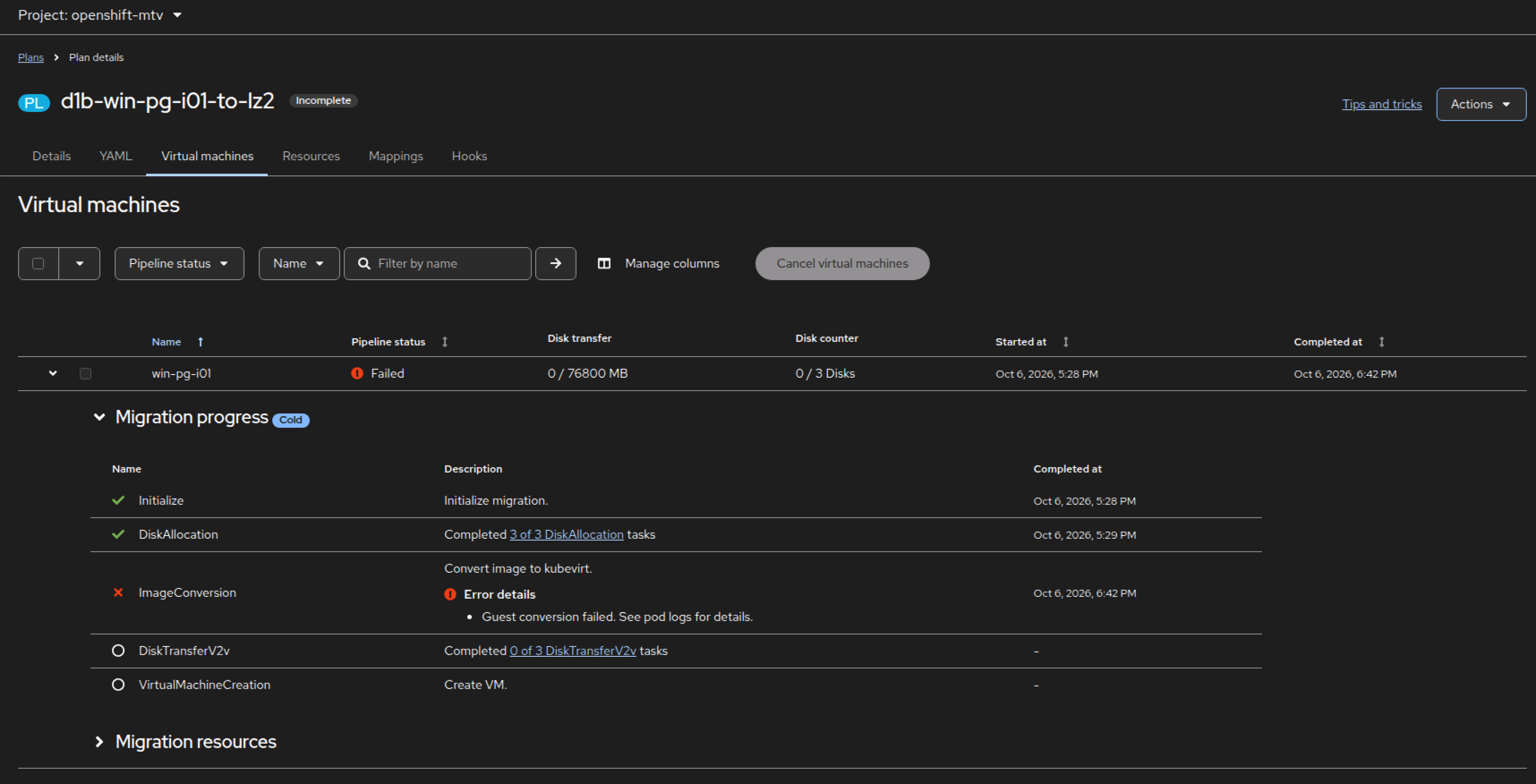 A failed cold migration: ImageConversion (virt-v2v) failed, and the error says "See pod logs for details". There is no
Cancel on a failed plan, only Delete, and deleting the plan deletes its pods and their logs, so read them first.
A failed cold migration: ImageConversion (virt-v2v) failed, and the error says "See pod logs for details". There is no
Cancel on a failed plan, only Delete, and deleting the plan deletes its pods and their logs, so read them first.
The conversion runs in a pod in your project, named after your plan. After a failure it stays there in status Error, with its full log.
Console: Workloads → Pods, project your class ID → the pod named after your plan → Logs.
Web Terminal:
oc -n student-01-0024-012 get pods | grep d1-win-pg-s01                                     # the conversion pod (Error)
POD=$(oc -n student-01-0024-012 get pods -o name | grep d1-win-pg-s01 | head -1)
oc -n student-01-0024-012 logs "$POD" | grep -E 'virt-v2v: error|error:|HTTP' | sort | uniq -c | tail
Read the log bottom up: the last virt-v2v: error: line is the verdict, and the lines above it are the cause.
For example, HTTP 404 on a …-flat.vmdk URL means MTV could not read the VM's disk from vCenter. Show your
instructor before you delete or archive the plan.
Site A can't finish your migration: fall back to site B (your instructor decides)
Only in the VMware Migration & BCDR class (demo-0024). The VMware Alternative class (demo-0002) has one OpenShift cluster, so there is no site B to fall back to: your instructor restarts the plan on site A.
Site B is staged exactly like site A: the same provider, maps and plan d1-win-pg-s01, into your namespace of the
same name. If site A has a problem your instructor can't fix in class time, they tell you to run your migration on
site B instead.
- Make sure no copy of your VM runs on site A. Both sites share your VM's VLAN, so two running copies would
fight over
10.101.23.101. Console (site A): Virtualization → VirtualMachines, project your class ID: ifwin-pg-s01is listed and not Stopped, Actions → Stop. Not listed is fine: the plan never created it. Web Terminal (site A):
oc -n student-01-0024-012 get vm win-pg-s01 && { virtctl -n student-01-0024-012 stop win-pg-s01 \
  || oc -n student-01-0024-012 patch vm win-pg-s01 --type merge -p '{"spec":{"runStrategy":"Halted"}}'; }
d1-win-pg-s01 → Start. Your vSphere VM is already off, which is what a cold migration wants.
3. Carry on from 1.3's watch and 1.4 in the site B console and Web Terminal.
Demos 1a and 1b work the same on site B. Demo 1c and Demo 4 start from site A, so tell your instructor before those (Demo 4: two identical sites).
1.4 Review your VM on OpenShift, then power it on¶
Back from the cloud-native labs? Delete your cloud-native server first, if you haven't (Demo 1d §1d.5), and check that your plan shows Succeeded:
oc -n student-01-0024-012 delete vm,secret -l app=pg-s01-centos10         # the CentOS server, its disks and Secret
oc -n openshift-mtv get plan d1-win-pg-s01                                 # SUCCEEDED True
Console (site A): Virtualization → VirtualMachines, project student-01-0024-012 → win-pg-s01.
| Tab | What you see |
|---|---|
| Configuration → Network | one NIC on default/vmnet23: your VLAN's bridge, the same VLAN the VM had on vSphere (port group vm-network, VLAN 23) |
| Configuration → Storage | three disks, now persistent volume claims on ocs-storagecluster-ceph-rbd-virtualization (ODF): 32 GB C:, 1 GB data, 256 MB WAL (60 GB / 10 GB / 5 GB on a VM built before 2026-10-15) |
oc -n student-01-0024-012 get vm win-pg-s01 -o jsonpath='{range .spec.template.spec.networks[*]}{.multus.networkName}{"\n"}{end}'   # default/vmnet23
oc -n student-01-0024-012 get pvc -o custom-columns=NAME:.metadata.name,SIZE:.spec.resources.requests.storage,CLASS:.spec.storageClassName
Power it on: Actions → Start. Wait for Running.
oc -n student-01-0024-012 get vmi win-pg-s01 -w # Scheduling → Running (Ctrl-C to stop watching)
🔄 Windows reboots by itself three or four times on its first start: that is normal. On the first boot, the scripts
virt-v2vleft behind remove VMware Tools, finish the virtio driver install and start the QEMU guest agent; each step can restart the guest. Watch it in Console; allow about 5–10 minutes, and don't stop or restart the VM yourself. It's done when the login screen stays up and the Guest agent shows as connected. To check from inside Windows (PowerShell):Get-Service QEMU-GA, VMTools -ErrorAction SilentlyContinue | Format-Table Name, Status # QEMU-GA Running; no VMTools row Get-PnpDevice -PresentOnly | Where-Object FriendlyName -match 'VirtIO|Red Hat' | Format-Table Status, FriendlyName
On the VM's Overview, the Guest agent shows as connected, and IP addresses shows 10.101.23.101: your VM
kept its address, so your SQL server is still at the same -h as on vSphere.
Check the guest tools swap: VMware Tools out, the QEMU guest agent in. OpenShift reads this from the agent running inside Windows, through the VM's virtual hardware rather than the network, so it works even when the VM can't be reached:
oc -n student-01-0024-012 get vmi win-pg-s01 -o jsonpath='{range .status.conditions[?(@.type=="AgentConnected")]}AgentConnected={.status}{"\n"}{end}{.status.guestOSInfo.prettyName}{"\n"}{range .status.interfaces[*]}{.interfaceName} {.ipAddress} ({.infoSource}){"\n"}{end}'
✅ AgentConnected=True, Windows Server 2022 Standard, and Ethernet 10.101.23.101 with guest-agent in its
source (a Loopback … 127.0.0.1 line follows; ignore it). Only a running agent can report the OS name and the address Windows holds, so this proves the QEMU guest
agent is working. VMware Tools is gone because virt-v2v removes it; to see that for yourself, run the PowerShell
check above in the VM's Console: QEMU-GA is Running and there is no VMTools row.
⚠️ Leave the vSphere copy powered off. Both copies have
10.101.23.101on the same VLAN 23, so powering the old one back on gives two machines one address and splits your writes between two databases.
✅ Running, guest agent connected, address 10.101.23.101.
1.5 Inject: the migration is complete, and read your rows back¶
Give Windows a minute to start PostgreSQL, then:
oc exec -n student-01-0024-012 deploy/sql-client -- sql -h 10.101.23.101 -c "SELECT * FROM ovedr_mark('student-01-0024-012', 'cold-migration-complete', 'on OpenShift site A');"
oc exec -n student-01-0024-012 deploy/sql-client -- sql -h 10.101.23.101 -c "SELECT id, ts, stage, payload FROM marks ORDER BY id;"
oc exec -n student-01-0024-012 deploy/sql-client -- sql -h 10.101.23.101 -c "SELECT * FROM ovedr_verify('student-01-0024-012');"
✅ The read-back lists, in order: start-class (Lab 0), demo-started, start-cold-migration (written on vSphere)
and cold-migration-complete (written on OpenShift). ovedr_verify shows chain_ok = t: no row lost, changed or
reordered by the move.
That is the end of Demo 1. Your VM now runs on OpenShift Virtualization, with every row it held on VMware.
Bonus labs (optional)¶
You did 1d, 1a and 5 on the cloud-native server while the copy ran. Do 1a and 5 again on your migrated Windows VM to see the same protection on the server you moved; 1b and 1c start from it too.
| Bonus | What you do |
|---|---|
| Demo 1a: snapshot and restore | snapshot your VM, destroy the database, bring it back from the snapshot's disks |
| Demo 1b: live migration and storage migration | move the running VM to another node, then move its disks to another storage class, with no reboot |
| Demo 1c: cross-cluster migration | link the two clusters in ACM, then move your VM from site A (ODF) to site B (NFS) |
| Demo 5: OADP backup and restore | back up your project, delete your VM, restore it, prove the rows (if your lab has OADP) |
Next: Demo 2: warm migration with storage copy offload (🚧 coming soon: read only).
Addendum: how the lab staged this demo, as code¶
Nothing you used in this demo was clicked together. The class's CI (the GitHub Actions workflow deploy.yml, action
customize) declared every object, and it runs again on every booking with the same result: run it twice and the
second run changes nothing. In order:
| CI job | Code | What it declares |
|---|---|---|
mtv-install |
Ansible role mtv_operator |
checks MTV (installed by the OpenShift build, option ove: cnv-mtv), sets the pre-copy interval, grants students the right to create plans and migrations |
mtv-fabric |
automation/customize/mtv_fabric.sh |
the link to vCenter (a Secret + a Provider), and the NetworkMaps and StorageMap |
stage |
automation/customize/stage.sh |
one Plan per class VM, d1-<vm> (cold) and d2-<vm> (warm), not started |
migration-test |
automation/test/migrate_both.sh |
the proof: a test clone migrates from vSphere to each site with the same Plan + Migration you used, and its data is checked (action test-migration) |
The chain MTV follows, and each object as the lab declares it (the Secret's password never appears in the code: CI reads it from the vault at run time):
# 1 · Provider: the link to vCenter. MTV reads its inventory (VMs, networks, datastores) through it.
apiVersion: forklift.konveyor.io/v1beta1
kind: Provider
metadata: { name: ovedr-vcenter01, namespace: openshift-mtv }
spec:
  type: vsphere
  url: https://vcenter01.demo.lab-paragonmicro.com/sdk
  secret: { name: ovedr-vcenter01, namespace: openshift-mtv }   # user, password, the vCenter CA
---
# 2 · NetworkMap: vSphere port group → your VLAN's bridge on OpenShift, so the VM keeps its address
apiVersion: forklift.konveyor.io/v1beta1
kind: NetworkMap
metadata: { name: ovedr-vcenter01-net-bridge, namespace: openshift-mtv }
spec:
  provider: { source: { name: ovedr-vcenter01, namespace: openshift-mtv }, destination: { name: host, namespace: openshift-mtv } }
  map:
    - { source: { name: vm-network }, destination: { type: multus, name: vmnet23, namespace: default } }
---
# 3 · StorageMap: vSphere datastore → OpenShift storage class (ODF on site A)
apiVersion: forklift.konveyor.io/v1beta1
kind: StorageMap
metadata: { name: ovedr-vcenter01-storage, namespace: openshift-mtv }
spec:
  provider: { source: { name: ovedr-vcenter01, namespace: openshift-mtv }, destination: { name: host, namespace: openshift-mtv } }
  map:
    - { source: { name: coresan01_data00 }, destination: { storageClass: ocs-storagecluster-ceph-rbd-virtualization } }
---
# 4 · Plan: which VM, to which project, through which maps. Staged, not started.
apiVersion: forklift.konveyor.io/v1beta1
kind: Plan
metadata: { name: d1-win-pg-s01, namespace: openshift-mtv, labels: { ovedr/stage: plan, ovedr/type: cold } }
spec:
  warm: false
  targetNamespace: student-01-0024-012
  provider: { source: { name: ovedr-vcenter01, namespace: openshift-mtv }, destination: { name: host, namespace: openshift-mtv } }
  map:
    network: { name: ovedr-vcenter01-net-bridge, namespace: openshift-mtv }
    storage: { name: ovedr-vcenter01-storage,    namespace: openshift-mtv }
  vms: [ { name: win-pg-s01 } ]
5 · Migration: the only object left to you. The console's Start creates it, as does the CLI box in 1.3.
Read the live ones from your Web Terminal:
oc -n openshift-mtv get provider ovedr-vcenter01 -o yaml
oc -n openshift-mtv get networkmap ovedr-vcenter01-net-bridge -o yaml
oc -n openshift-mtv get storagemap ovedr-vcenter01-storage -o yaml
oc -n openshift-mtv get plan d1-win-pg-s01 -o yaml
Field by field, with the console screens for each: Lab S §S.5–S.8 and §S.12.
Thank you¶
- Migration Toolkit for Virtualization 2.11 documentation
- OpenShift Virtualization documentation (4.19)
- Lab S — how this lab was built: the provider, maps and plan, built by hand
- DO316: Managing Virtual Machines with Red Hat OpenShift Virtualization (course)
- Red Hat interactive labs (free, in the browser)